
View: https://www.youtube.com/watch?v=XigkW7mHkIw
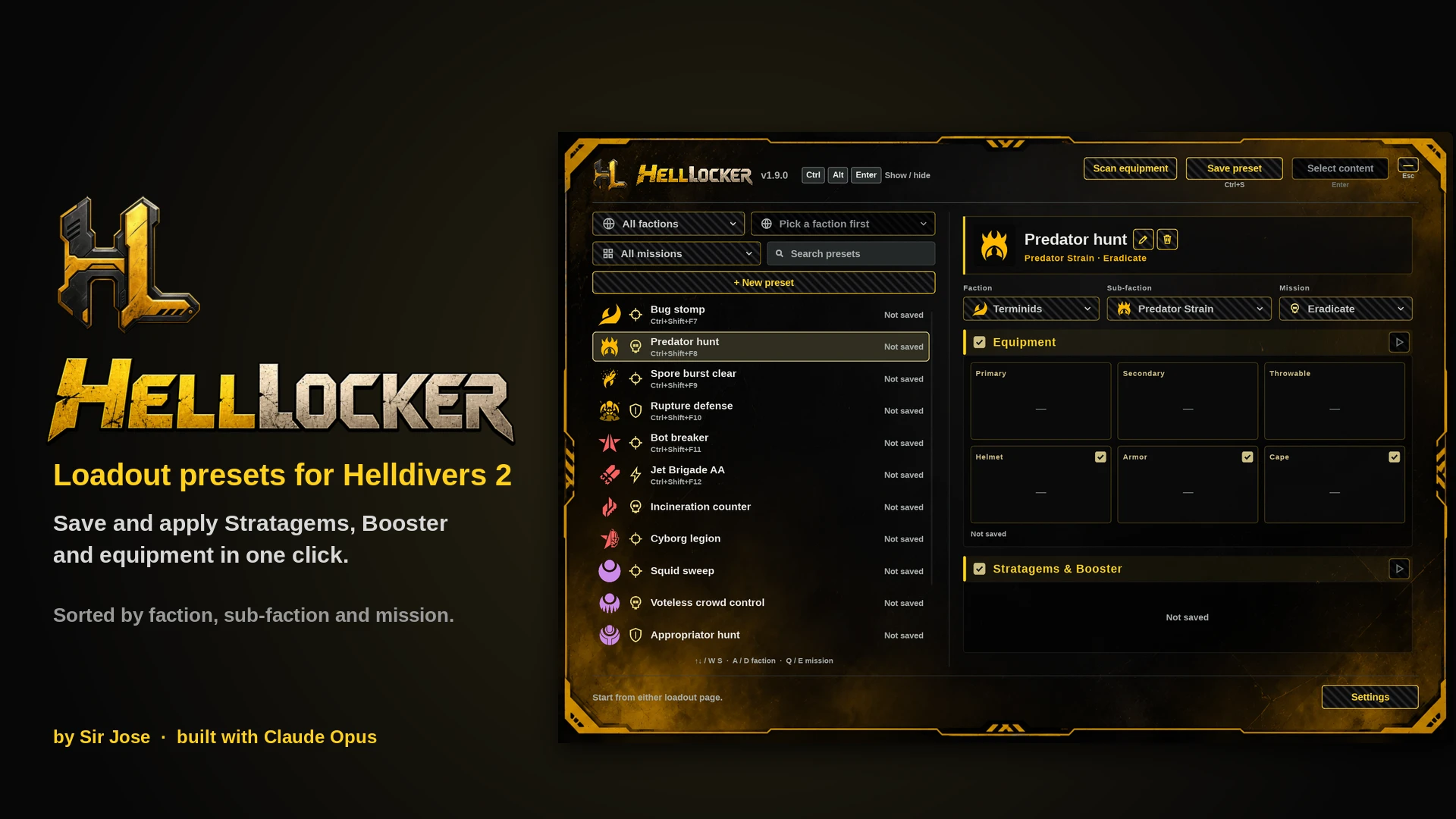
HellLocker saves your whole loadout (Stratagems, Booster, primary, secondary, grenade, helmet, armor and cape) and puts it back with one click or one hotkey. Presets are sorted by enemy faction, sub-faction and mission type, so the right loadout is a glance away while the drop timer runs.
Features
- One-click presets: save what you have equipped, then apply it any time with Apply all, Enter, a double-click or the preset's own hotkey.
- Faction, sub-faction and mission filters:
- Terminids: Predator Strain, Spore Burst Strain, Rupture Strain
- Automatons: Jet Brigade, Incineration Corps, Cyborg Legion
- Illuminate: Mindless Masses, Appropriators, Vote Snatchers
- Missions: Standard, Blitz, Eradicate, Defense
- Pick what to apply: Stratagems & Booster, weapons and grenade, and separate Helmet / Armor / Cape switches.
- Scan equipment: walks every equipment list once and keeps each item's picture, so saving is quicker and your presets show their gear.
- Search, keyboard navigation (W/S, A/D faction, Q/E mission) and a global show/hide shortcut (Ctrl+Shift+Space by default).
- Stays out of your way: keep it open on a second monitor, drag it anywhere, and set the panel size (100-200%) and background opacity.
- Updates never lose your presets: everything is saved in %APPDATA%\HellLocker, not in the app folder.
HellLocker is a separate Windows app. It looks at the loadout screen with screen capture and makes selections with ordinary mouse and keyboard input, the way you would by hand. It does not modify game files, inject code, read game memory or touch network traffic, and it needs no mod manager or other mods.
It is an unofficial tool, so as with any third-party program, use it at your own discretion.
Requirements
- Windows 10 or 11 (64-bit). Nothing else to install.
- Helldivers 2 in Borderless Window mode, at the same resolution as your desktop.
- Download the main file and unzip the HellLocker folder anywhere you like (not inside the game folder).
- Run HellLocker.exe. The panel opens; afterwards it lives in the system tray. Your settings folder, %APPDATA%\HellLocker, is created on first run.
- Recommended: go to a loadout page in game and press Scan equipment once. Leave the game alone for a few minutes while it works, and run it again after big game updates.
How to use
- Pick a faction, sub-faction and mission at the top left, then press + New preset. Rename it with the pencil, and change what it's for with the For boxes.
- In game, on a loadout page with the loadout you want equipped, select the preset and press Save preset (Ctrl+S). Keep your hands off the mouse and keyboard while it clicks through the equipment pages.
- To apply, select the preset and press Apply all (Enter), double-click it, or use its hotkey (Settings > Shortcuts).
Close HellLocker from the tray, then replace the HellLocker folder with the new one. Your presets, settings and pictures stay in %APPDATA%\HellLocker.
Uninstalling
Close it from the tray and delete the HellLocker folder. To remove your presets too, delete %APPDATA%\HellLocker.
Known limits & bug reports
- It needs to see the game, so don't put other windows over the loadout screen while it works.
- Release all keys and leave the mouse alone during a save or apply.
- Something went wrong? Post in the Bugs tab with app.log and last_failure.zip from %APPDATA%\HellLocker (type that into the File Explorer address bar to open it).
- Sir Jose: creator. Idea, design, artwork, testing and direction.
- Claude Opus (Anthropic's AI): wrote the code together with Sir Jose.
VirusTotal Results
- https://www.virustotal.com/gui/file/93e1743a3627a84b2e1cd16878d7d8cd356ab4f22e15b58efcdb81c76daec094
Enjoying HellLocker? Want to show your Thanks or Support? New builds and news go to my Patreon first: https://www.patreon.com/SirJose/posts/helllocker-v1-9-173366844
