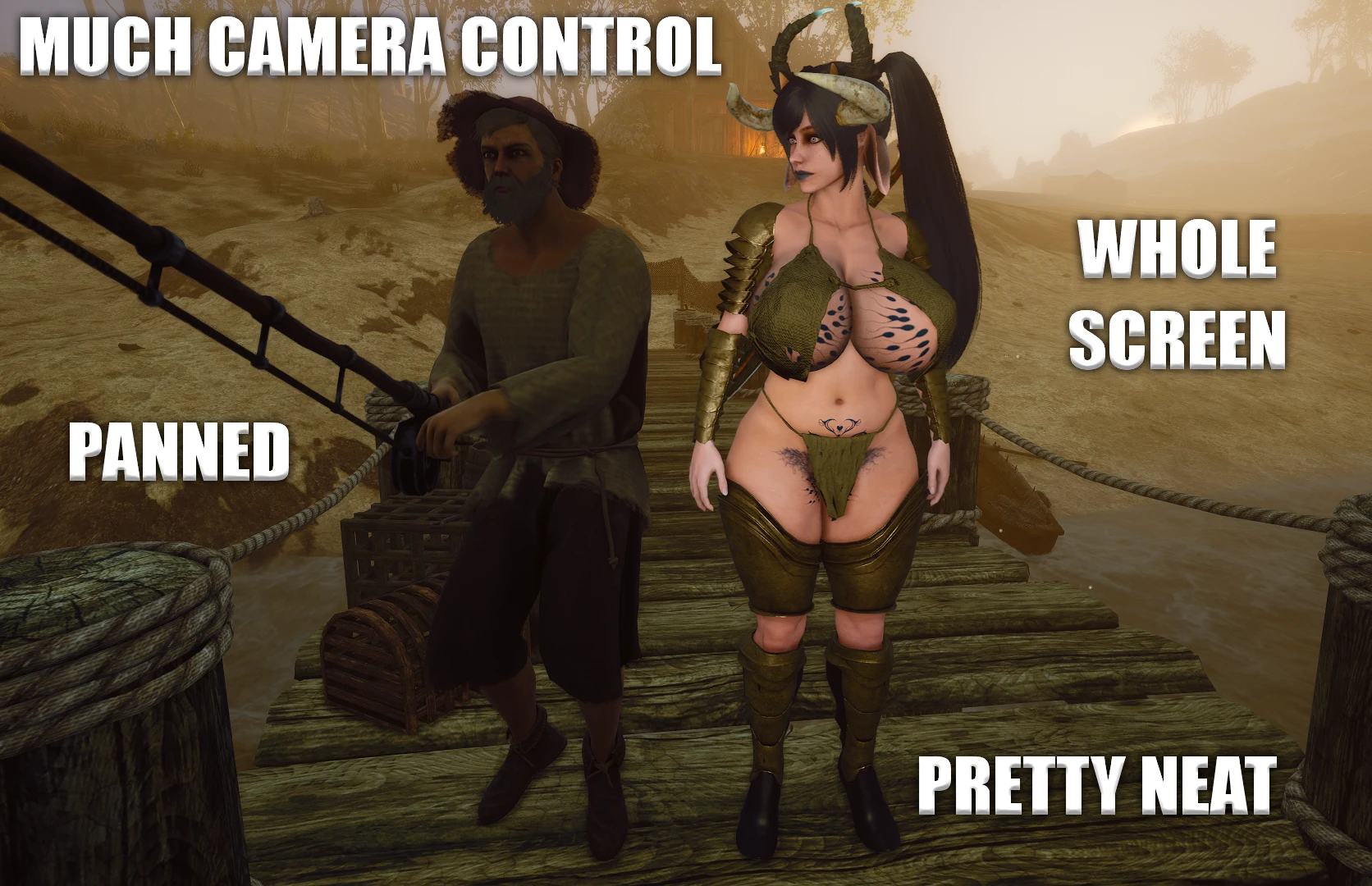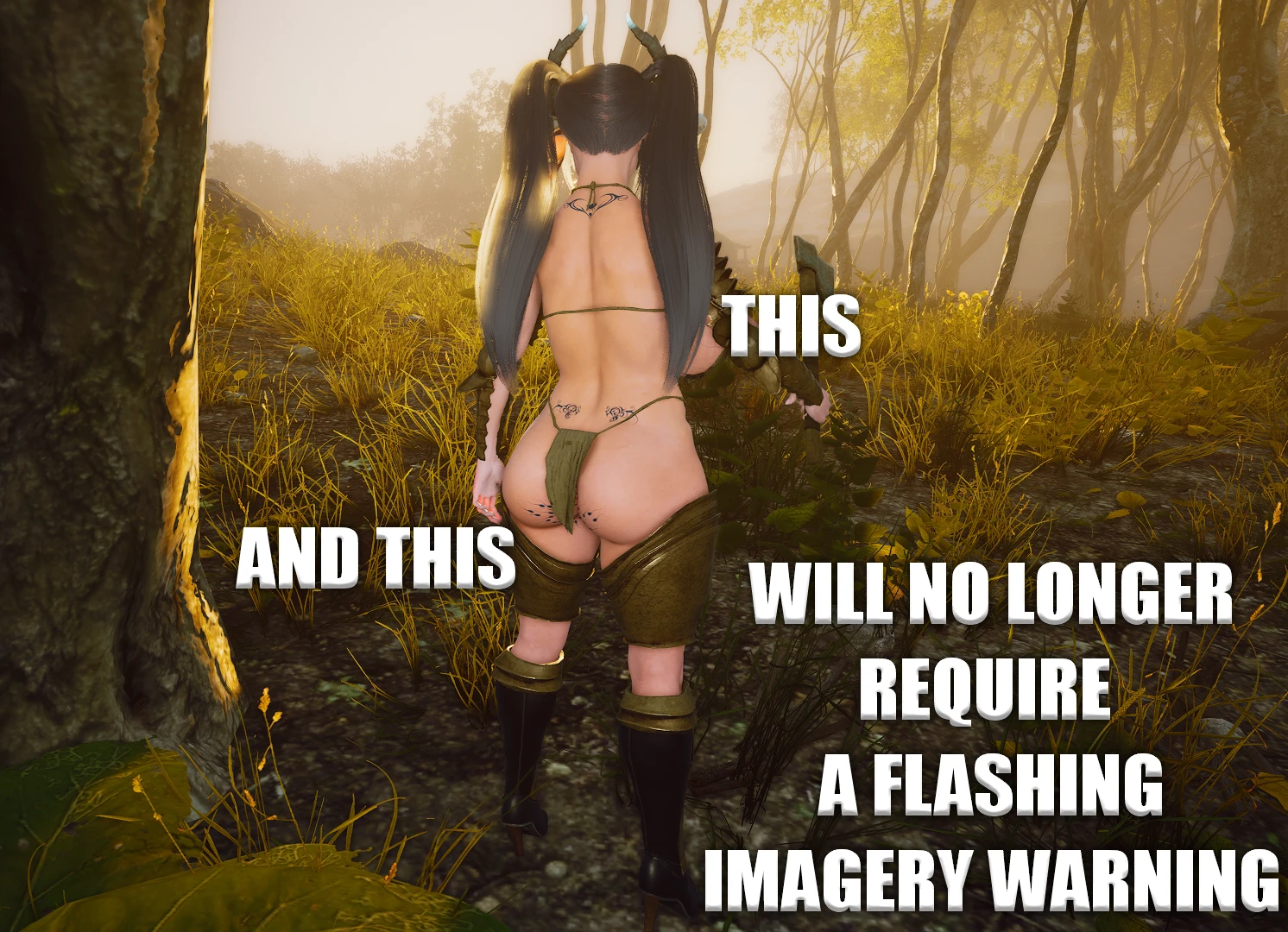
In case you too have personally found the game's vanilla amount of jiggle physics a little overwhelming, here is a solution.
Simply by installing the mod you'll start out with considerably less jiggles, but you can further fine-ish tune it to your liking using some increase and decrease jiggle amount buttons.
The hotkeys used are editable by simply editing the included hotkeys.txt
The default hotkeys are:
- Ctrl+F7 and Ctrl+F8
To decrease or reduce the amount of jiggle physics amount.
- Ctrl+F9
Temporarily restore the vanilla game's original amount of jiggling, in case you want to compare.
- Ctrl+F10
Restores the modded jiggles after a Ctrl+F9
Installation:
Simply unpack and then drop the:
WickedIsland_Jiggle-CTRL-F7-CTRL-F8_Configurable folder into:
\WickedIsland\Binaries\Win64\ue4ss\Mods\
There is the usual possible issue that the folder might be double wrapped upon unpacking.
So basically make sure that for example the enabled.txt is in this folder like this:
\Mods\WickedIsland_Jiggle-CTRL-F7-CTRL-F8_Configurable\enabled.txt
And not like this:
\Mods\WickedIsland_Jiggle-CTRL-F7-CTRL-F8_Configurable\WickedIsland_Jiggle-CTRL-F7-CTRL-F8_Configurable\enabled.txt
The same applies to all the mod files, of course, as a whole, this file was just an example, it's all about making sure that the right core folder is dropped into \Mods\ without it becoming a sub-subfolder there due to the unpacking.
Enjoy