
DESCRIPTION
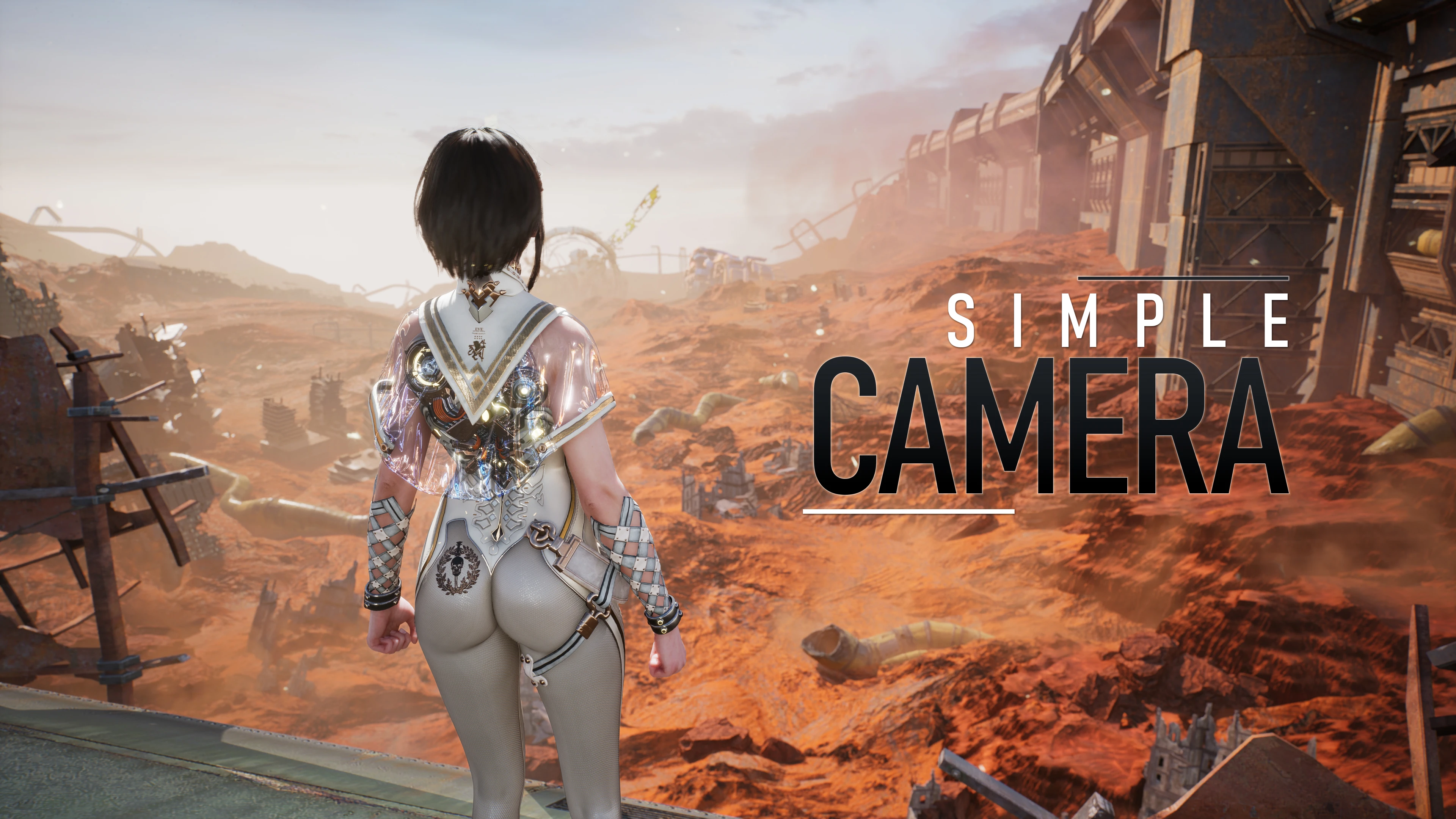
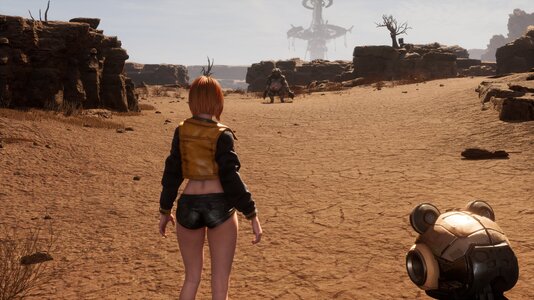
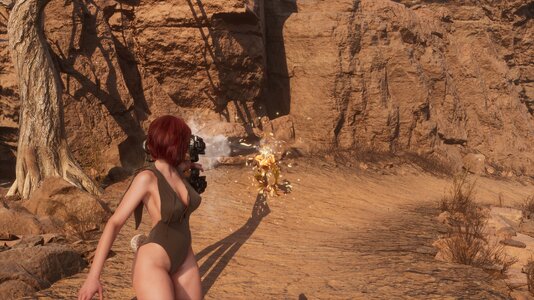
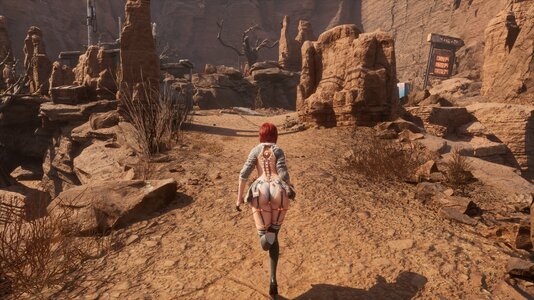
Simple Camera is an easy way to adjust the camera without a lot of setup. Includes 26 configurable settings designed for quick and easy configuration. Supports unlimited presets, preset cycling, and in-game tuning via Simple Camera's in-game editor.
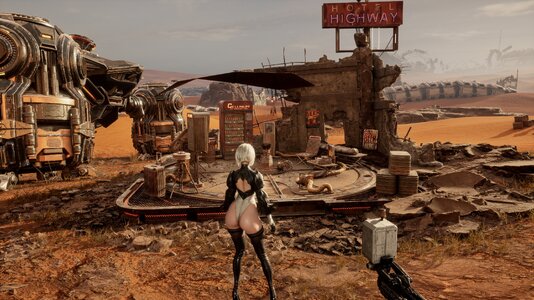
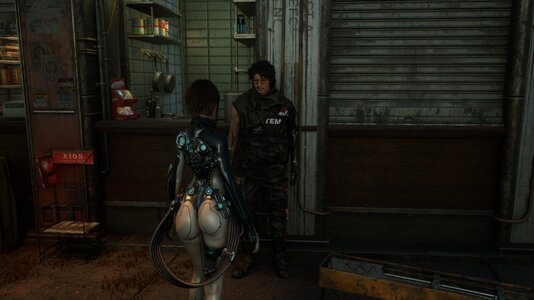
The mod automatically adjusts camera framing for wall runs, moving objects, and ledge climbs for improved visibility, while respecting your preset. Simple Camera hands control back to the game's camera for hypertubes, cutscenes, and fall deaths, then smoothly eases back in afterwards.
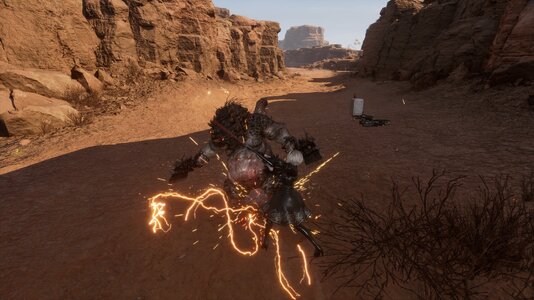
The combat camera prioritizes fast, low-latency transitions between TPS and lock-on. Movement (walking, jogging, sprinting, swimming) is treated as a single camera state "Play", with a speed-based range, smoothly adjusting the camera from speed 80–1050 instead of switching between separate locomotion states. This makes movement transitions feel more like a native game camera in which the character can move more freely in the frame.
View: https://youtu.be/ZUiHU13ZR1M
View: https://youtu.be/8nKWNgKusZ8
REQUIREMENTS
Stellar Blade UE4SS (v1.3 or newer)
UE4SS 3.1.0-6 and older versions are not supported.
INSTALLATION
1. Copy the SimpleCamera folder from this mods .zip and place it in your \StellarBlade\SB\Binaries\Win64\ue4ss\Mods\.
2. (Optional) add SimpleCamera : 1 near the top of your mods.txt located in \StellarBlade\SB\Binaries\Win64\ue4ss\, and delete enabled.txt in the SimpleCamera folder.
INCLUDED PRESETS
Default: My personal default.
Distant: Camera with wider view, centered Eve.
Cinematic: Camera with a closer view, similar to the Stellar Blade: Blood Rain trailer.
EDITING PRESETS
You can edit the presets located in \StellarBlade\SB\Binaries\Win64\ue4ss\Mods\SimpleCamera\Scripts\Presets\.
CameraDepthOffset: Adjusts how near/far the camera is from Eve.
CameraHorizontalOffset: Adjusts how Eve is framed on the horizontal axis.
CameraVerticalOffset: Adjusts how Eve is framed on the vertical axis.
CameraFOV: Adjusts the FOV.
SprintCameraDepthDelta: Modifier of CameraDepthOffset when Eve at speed 1050.
SprintCameraHorizontalDelta: Modifier of CameraHorizontalOffset when Eve is at speed 700 (or above).
SprintCameraVerticalDelta: Modifier of CameraVerticalOffset when Eve is at speed 1050.
SprintCameraFOVDelta: Modifier of CameraFOV when Eve is at speed 1050.
(Delta settings are basically addition or subtraction of Camera* settings. Whatever you set will be blended smoothly between locomotion states.)
Climb*Offset: These modify the camera while climbing (ladders, ropes, etc)
Beam*Offset: These modify the camera while on a beam (balancing beam).
Combat*Offset: These modify the camera while in combat.
CombatFOV: Modifies the FOV while in combat.
CombatLock*Offset: These modify the camera while locked on to a target (hard-lock).
TpsFOV: Set the FOV while firing the drone weapon.
EnableHardLockDriftCamera: Enables or disables lateral camera framing while locked on.
HardLockDriftOffset: The amount lateral movement allowed while locked on each side of center.
EnableCombatSoftLockCamera: Experimental feature that allows camera rotation while locked on, currently you cannot change targets.
KEYBINDS
F5: Reload/update settings from ini and presets folder.
Ctrl+F5: Disable/Enable Simple Camera
[ : Previous Preset
] : Next Preset
F8: Enable/Disable in-game Editor
IN-GAME TUNING GUIDE
1. Select the preset you want to edit with [ or ].
2. Enter the state you want to edit e.g., sprint if you want to edit Sprint*Delta, climb (ladder or rope) if you want to edit climb camera, etc.
3. Press F8 while in the state you want to edit, a HUD element will appear on the center-right of the screen, this confirms the editor is enabled.
4. Tune your preset (Keybinds are listed below), you can press F8 to disable the editor and test your settings (this will not save your settings).
5. After your preset is tuned, press Ctrl+F8 to commit your settings to selected preset, this overwrites the existing lua file in the presets folder.
TUNING KEYBINDS
F8: Enable/Disable Editor (enabling this enables the keybinds below)
Shift+Up Arrow / Shift+Down Arrow: Tune the vertical axis.
Shift+Left Arrow / Shift+Right Arrow: Tune the horizontal axis.
Ctrl+Up Arrow / Ctrl+Down Arrow: Tune the camera depth.
Ctrl+Left Arrow / Ctrl+Right Arrow: Tune the FOV.
Alt+Left Arrow / Alt+Right Arrow: Cycle increment amount 1, 5, 10, 20 (default is 1).
Ctrl+F8: Save to preset (lua file).
Simple Camera is an easy way to adjust the camera without a lot of setup. Includes 26 configurable settings designed for quick and easy configuration. Supports unlimited presets, preset cycling, and in-game tuning via Simple Camera's in-game editor.
The mod automatically adjusts camera framing for wall runs, moving objects, and ledge climbs for improved visibility, while respecting your preset. Simple Camera hands control back to the game's camera for hypertubes, cutscenes, and fall deaths, then smoothly eases back in afterwards.
The combat camera prioritizes fast, low-latency transitions between TPS and lock-on. Movement (walking, jogging, sprinting, swimming) is treated as a single camera state "Play", with a speed-based range, smoothly adjusting the camera from speed 80–1050 instead of switching between separate locomotion states. This makes movement transitions feel more like a native game camera in which the character can move more freely in the frame.
View: https://youtu.be/ZUiHU13ZR1M
View: https://youtu.be/8nKWNgKusZ8
REQUIREMENTS
Stellar Blade UE4SS (v1.3 or newer)
UE4SS 3.1.0-6 and older versions are not supported.
INSTALLATION
1. Copy the SimpleCamera folder from this mods .zip and place it in your \StellarBlade\SB\Binaries\Win64\ue4ss\Mods\.
2. (Optional) add SimpleCamera : 1 near the top of your mods.txt located in \StellarBlade\SB\Binaries\Win64\ue4ss\, and delete enabled.txt in the SimpleCamera folder.
INCLUDED PRESETS
Default: My personal default.
Distant: Camera with wider view, centered Eve.
Cinematic: Camera with a closer view, similar to the Stellar Blade: Blood Rain trailer.
EDITING PRESETS
You can edit the presets located in \StellarBlade\SB\Binaries\Win64\ue4ss\Mods\SimpleCamera\Scripts\Presets\.
EnableCameraCollision: Enables or disables camera collision with walls.
CameraDepthOffset: Adjusts how near/far the camera is from Eve.
CameraHorizontalOffset: Adjusts how Eve is framed on the horizontal axis.
CameraVerticalOffset: Adjusts how Eve is framed on the vertical axis.
CameraFOV: Adjusts the FOV.
SprintCameraDepthDelta: Modifier of CameraDepthOffset when Eve at speed 1050.
SprintCameraHorizontalDelta: Modifier of CameraHorizontalOffset when Eve is at speed 700 (or above).
SprintCameraVerticalDelta: Modifier of CameraVerticalOffset when Eve is at speed 1050.
SprintCameraFOVDelta: Modifier of CameraFOV when Eve is at speed 1050.
(Delta settings are basically addition or subtraction of Camera* settings. Whatever you set will be blended smoothly between locomotion states.)
Climb*Offset: These modify the camera while climbing (ladders, ropes, etc)
Beam*Offset: These modify the camera while on a beam (balancing beam).
Combat*Offset: These modify the camera while in combat.
CombatFOV: Modifies the FOV while in combat.
CombatLock*Offset: These modify the camera while locked on to a target (hard-lock).
TpsFOV: Set the FOV while firing the drone weapon.
EnableHardLockDriftCamera: Enables or disables lateral camera framing while locked on.
HardLockDriftOffset: The amount lateral movement allowed while locked on each side of center.
EnableCombatSoftLockCamera: Experimental feature that allows camera rotation while locked on, currently you cannot change targets.
KEYBINDS
F5: Reload/update settings from ini and presets folder.
Ctrl+F5: Disable/Enable Simple Camera
[ : Previous Preset
] : Next Preset
F8: Enable/Disable in-game Editor
IN-GAME TUNING GUIDE
1. Select the preset you want to edit with [ or ].
2. Enter the state you want to edit e.g., sprint if you want to edit Sprint*Delta, climb (ladder or rope) if you want to edit climb camera, etc.
3. Press F8 while in the state you want to edit, a HUD element will appear on the center-right of the screen, this confirms the editor is enabled.
4. Tune your preset (Keybinds are listed below), you can press F8 to disable the editor and test your settings (this will not save your settings).
5. After your preset is tuned, press Ctrl+F8 to commit your settings to selected preset, this overwrites the existing lua file in the presets folder.
TUNING KEYBINDS
F8: Enable/Disable Editor (enabling this enables the keybinds below)
Shift+Up Arrow / Shift+Down Arrow: Tune the vertical axis.
Shift+Left Arrow / Shift+Right Arrow: Tune the horizontal axis.
Ctrl+Up Arrow / Ctrl+Down Arrow: Tune the camera depth.
Ctrl+Left Arrow / Ctrl+Right Arrow: Tune the FOV.
Alt+Left Arrow / Alt+Right Arrow: Cycle increment amount 1, 5, 10, 20 (default is 1).
Ctrl+F8: Save to preset (lua file).
