
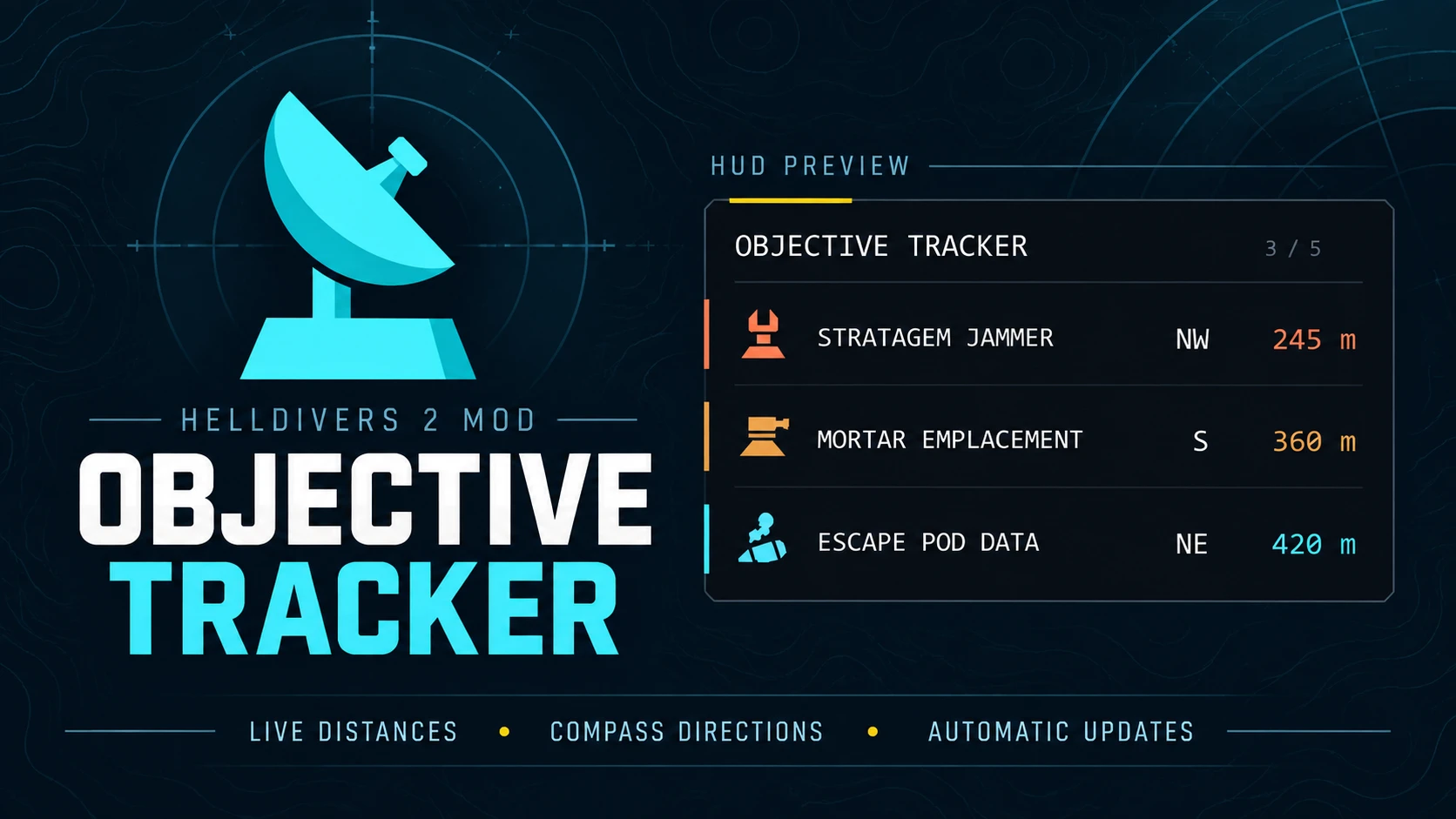

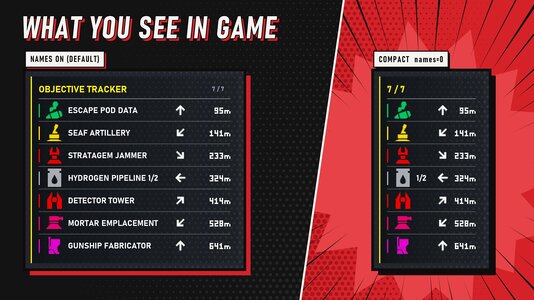






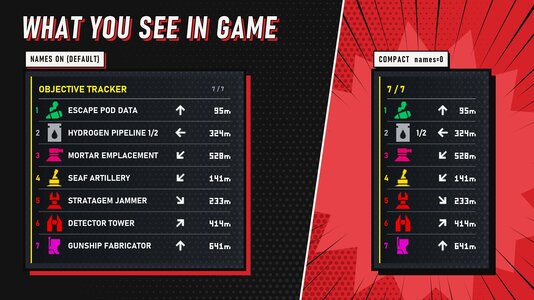
Objective Tracker helps you find your next objective and plan your route across the battlefield. Side objectives, enemy installations, mission tasks and specimen samples appear in one HUD panel from the moment you land, each with its own icon, live distance and an arrow pointing the way.
Targets are numbered in the shortest walk from where you stand, and a marker over each one shows where it is on screen. Completed objectives flash DONE and disappear automatically, including the ones your squad finishes, and once the main objectives are done the extraction point joins the list as the last stop. When you host, they clear the moment the game itself says they are done.
Version 0.8.2 works with the current game. It runs on its own loader and installs through HD2 Arsenal.
- Every objective from the drop. The whole map is listed as soon as you land, not only what is nearby.
- Route mode. The objectives are numbered in the shortest walk from where you stand, and the list follows that order. The order only changes when a new one is clearly shorter, so rows don't jump around while you move. Prefer nearest first? Turn it off in the settings.
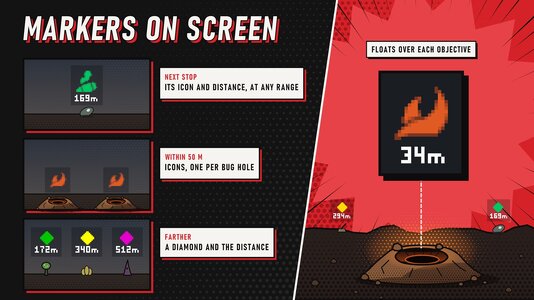
- Markers on screen. Each listed objective gets a marker with its distance over it in the world, so you can see where it is without opening the map. The next stop and anything within 50 m show their icon, the others a diamond in their colour, and every bug hole still open gets a marker of its own. MARKER RANGE limits them to objectives within 100, 200, 300 or 500 m.
- Exact spots instead of search circles. Where the map only shows a big circle, such as the survey sites for the prospecting drill and the seismic probes, the tracker points at the exact spot.
- Exact completion when you host. When you host, main and side objectives leave the list the moment the game itself says they are done: the tracker reads the game's own state of each objective, the one the game shares with every player in the mission. The pump valves leave when the pumping is finished, not at the last valve.
- Automatic completion tracking. Fuel pump valves, SEAF Artillery, LiDAR Stations, SAM Sites, Stratagem Jammers, drop-offs, prospecting drills and Orbital Cannons clear as they are completed. Destroyed structures such as control towers, mortar emplacements and ammo stockpiles clear too, and hatcheries count their eggs as you destroy them. A finished objective flashes DONE in green for a moment before it leaves.
- Extraction as the last stop. Once the main objectives are done, the extraction point joins the list, at the end of the route. In a mission with no main objective on the list, such as Purge Hatcheries, it is there from the drop.
- Your squad counts. Objectives a teammate takes care of leave your list as well, even when you were on the other side of the map. Joining a mission already under way, most enemy structures your squad destroyed before you arrived are left off.
- Progress counts. Objectives with several steps show how far along you are, such as PUMP VALVES 2/3 or SEAF ARTILLERY 4/5.
- Arrow navigation. Each row has an arrow that turns with your view and points at the next part to use, such as the next valve to turn.
- Easy to read at a glance. Each kind of objective has its own colour and a sharp icon, so a long list of enemy installations is easy to tell apart.
- Fits the game's HUD. A dark band on the left screen edge with a yellow accent. It keeps the same size next to the game's HUD at any resolution.
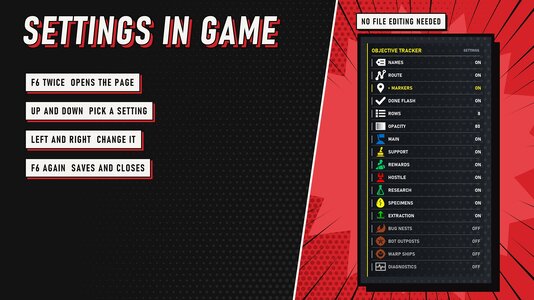
- Settings in game. Press F6 twice for the settings page, in three short tabs (DISPLAY, GROUPS and KEYS) with an icon for every setting: turn route mode, markers, names and every group on or off, set the number of rows and the background, and change every key, without leaving the game.
- Stratagem hide. Turn on STRATAGEM HIDE and the panel and its markers step aside while the stratagem list is open, so you can put the panel right where it opens. It works out from how you use the key whether the game opens your stratagem list on Hold or on Press (a tap and then the code, or a tap to open the list and another to close it, shows Press), and HOLD or PRESS can force it. On a controller it watches LB (L1) and the d-pad, as Hold unless you pick PRESS.
- Map only. Turn on MAP ONLY and the panel shows only while the map is open, on keyboard or controller. The markers stay on screen as usual.
- Compact mode. Set names=0 to hide the names: each row keeps its icon, count, arrow and distance, and the panel is about half as wide.
- Show only what you want. Hide whole groups, such as the main objectives, the side objectives or the enemy structures. See the settings below.
- Optional nest tracking. Bug nests, bot outposts and warp ships can be added to the list. They are off by default.
- 79 objective types across all three fronts, most of them with their own icon.
- Download the main file and import the ZIP into HD2 Arsenal.
- Enable Objective Tracker and deploy.
- Optional: bug nests, bot outposts and warp ships start hidden. Press F6 twice in game, then Page Down to the GROUPS tab, and turn on BUG NESTS, BOT OUTPOSTS or WARP SHIPS to list them too.
- Using a mod loader or another mod that replaces the game's boot script? Give Objective Tracker the highest priority in HD2 Arsenal (deploy it last): it starts the other mod's boot script too, so both run.
- F10 shows or hides the panel. Showing it again also reloads your settings.
- F7 hides the nearest objective.
- F8 brings back the last objective that you hid or that left after your squad walked away from it.
- F9 writes the current list to the log.
- F6 opens adjust mode: the arrow keys move the panel and Page Up and Page Down change its size. Press F6 again for the settings page, in three tabs: Page Up and Page Down switch tabs, Up and Down pick a setting and Left and Right change it. A third F6 saves everything and closes it.
The keys are keyboard only, and every one of them can be changed in game on the KEYS tab (F1 to F12, never one another key uses) or in the settings file. In a squad the panel can say NO POSITION for a moment after the drop; it goes away once you move.
Press F6 twice in game for the settings page. It has three tabs, DISPLAY, GROUPS and KEYS: Page Up and Page Down switch tabs, Up and Down pick a setting, Left and Right change it, and F6 saves. Press F6 once to place the panel: the arrow keys move it and Page Up and Page Down change its size. It works aboard your ship too.
Everything is also kept in a text file that is created in your Helldivers 2 folder (the one with the data and bin folders; in Steam: right click the game, Manage, Browse local files) the first time you play:
Code:
Helldivers 2\ObjectiveTracker-settings.txtOpen it in any text editor, change a value, save it and press F10 twice in game to load it. Each line is name=value. A value left empty counts as the default.
Panel
- left and top: where the panel sits, in percent of the screen from the left edge and from the top (0 and 23). F6 sets them for you.
- scale: the panel's size at 1920x1080 (0.85). Other resolutions keep the same size next to the game's HUD.
- rows: how many objectives are shown at once (8, at most 20).
- opacity: the background's opacity in percent (80).
- names: 1 shows the objective names, 0 hides them for a panel about half as wide; each row keeps its icon, count, arrow and distance (1).
- route: 1 numbers the objectives in the shortest walk from where you stand and lists them in that order; 0 lists them nearest first (1).
- markers: 1 draws a marker with the distance over each listed objective on screen: the next stop and anything within 50 m get their icon, the others a diamond in their colour (1).
- marker_range: how far the markers reach, in metres: only objectives nearer than that get one; 0 marks every listed objective (0). MARKER RANGE on the DISPLAY tab steps through ALL, 100, 200, 300 and 500 m.
- flash: 1 lets a finished objective flash DONE in green before it leaves (1).
- exact: 1, when you host, lets a main or side objective leave when the game itself says it is done; 0 goes by what the tracker can see, as it always does when you join someone else's game. EXACT DONE on the F6 page (1).
Groups: 1 shows a group, 0 hides it (all 1). The objectives in each group are listed under Supported targets.
- main: the mission's own objectives and their steps, including the structures a mission sends you to destroy.
- support: side objectives that help in the fight.
- rewards: side objectives that only give requisition or samples.
- hostile: enemy structures that are side objectives.
- research: research objectives.
- specimens: Mutated Eggs and Automaton Heads.
- extraction: the extraction point, listed once the main objectives are done, or from the drop when no main objective is listed (the hatcheries of Purge Hatcheries are hostile, since they are side objectives elsewhere).
Nests (off by default)
- nests, outposts and warp_ships: bug nests, bot outposts and warp ships. 1 shows them, 0 or empty hides them (they start hidden). The GROUPS tab of the F6 settings page switches them too.
Keys and the rest
- key_toggle (F10), key_dismiss (F7), key_undo (F8), key_mark (F9) and key_adjust (F6): the keys under Controls, written as key names such as f5. The KEYS tab of the F6 page sets them to F1 to F12.
- strat_hide: hides the panel and its markers while the game's stratagem list is open, so the panel can sit where the list opens. The game can open the list on Hold or Press (Open Stratagem List in its key bindings), so 1 (AUTO) works out which from how you use the key: until it has seen a tap followed by a code, or a tap to open the list and another to close it, it takes Hold, and a controller it always takes as Hold; 2 (HOLD) hides while you hold the key; 3 (PRESS) hides from a tap until a second after the last direction key, or until a second tap before any of them, and with no direction key at all it comes back after 6 seconds; 0 is off (0). STRATAGEM HIDE on the KEYS tab.
- key_stratagem: the key that opens the stratagem list, left ctrl as in the game. If you moved it, write its name as the game knows it, such as left alt (keyboard keys only).
- map_only: 1 shows the panel only while the map is open: a tap of the map key opens it and a second tap or Esc closes it, as the game's map does, and holding the key shows it until you let go. The markers stay on screen as usual (0). MAP ONLY on the KEYS tab.
- key_map: the map key, tab as in the game. If you moved it, write its name as the game knows it (keyboard keys only).
- pad_stratagem and pad_map: the controller buttons for the stratagem list and the map. auto finds LB (L1) and View (the touch pad); if you moved them, write the engine's name for the button, which the log lists with diagnostics=1, such as right_shoulder for RB; none turns it off.
- diagnostics: 1 writes extra detail to the log for bug reports (0).
- settings: the file's layout version. Leave it as it is.
The logs and the crash journal are kept in the same folder. If the game folder can't be written, everything stays in %LOCALAPPDATA% instead.
- Main objectives (main): Fuel Pumps, E-710 Hose Connections, Hydrogen Pipelines, Organic Plasma, Communication Uplinks, ICBMs, Launch Codes, Obtain Coordinates, Intel Packages, Black Boxes, Black Box Uploads, Data Uploads, Drop-offs, SSSD Drives, Objective Terminals, TCS Stations, Hive Breaker Drills, Seismic Probes, Prospecting Drills, Power Generators, Defend Generators, Civilian Evacuation, Cargo Containers, Platinum Refineries, Fusion Batteries, Battery Stations, Foul Shrines, Raise the Flag, Video Cameras, Record Evidence, Chemicals Backpacks, Thumpers, Spore Lungs, Control Towers, Command Bunkers, Orbital Cannons, Cooling Towers, Assembly Units, Monoliths, Overships, Invasion Ships, Exospires and Exospire cores.
- Side objectives that help in the fight (support): LiDAR Stations (radar stations), SEAF Artillery, SEAF SAM Sites, Mobile Radar, Defense Cannons, Compromise Automaton Defenses, Antennas and Secondary Extraction.
- Side objectives for requisition or samples (rewards): Escape Pod Data, Specimen Cases and Mutant Larvae.
- Enemy structures (hostile): Stratagem Jammers, Anti-Air Emplacements, Detector Towers, Cognitive Disruptors, Gunship Fabricators, Illegal Broadcasts, Mortar Emplacements, Shrieker Nests, Stalker Lairs, Spore Spewers, Hatcheries, Ammo Stockpiles, Fuel Silos, Bio-Processors, Gazer Spires and Portal Batteries.
- Research (research): Research objectives.
- Samples (specimens): Mutated Eggs and Automaton Heads.
- Extraction (extraction): The extraction point.
- Nests (nests, outposts, warp_ships; off by default): Bug nests, bot outposts and warp ships.
Some objectives are the main objective in one mission and a side objective in another, such as escape pod data, illegal broadcasts, hatcheries, fuel silos, ammo stockpiles and bio-processors. They are in their side group, so main=0 never hides a side objective.
If an objective is missing, stays listed after completion, or you notice stutters, set diagnostics=1 in the settings file (or on the KEYS tab of the F6 page) and press F10 twice before reproducing the issue. Close the game and copy these files from your Helldivers 2 folder (or %LOCALAPPDATA%, if the game folder can't be written):
Code:
ObjectiveTrackerLoader.log
ObjectiveTrackerLoader-previous.log
ObjectiveTrackerLoader-journal.txt
Include the mod version, objective name, what happened and whether you hosted or joined. Copy the logs before your next session, since each launch replaces the older log, then set diagnostics back to 0.
If the panel says OFF AFTER A CRASH, or part of the tracker switched itself off after a game crash, delete ObjectiveTrackerLoader-journal.txt and it will try again on the next launch.
Objective Tracker is a plain Lua script. It doesn't read game memory, load DLLs or try to get around the anti-cheat. The full source code is included in the download so you can see exactly what it does. As with any mod, use it at your own risk.



Pinned comment